Create a disk template
Learn how to create disk templates in Krystal Cloud for consistent and efficient disk deployment.
Access the disk templates section
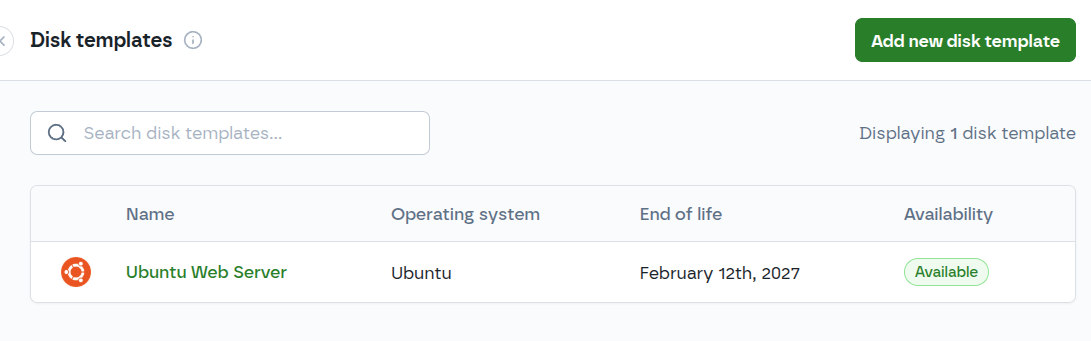
- In the Krystal Cloud Console, navigate to Storage > Disk Templates.
- Click Add new disk template to open the creation dialog.
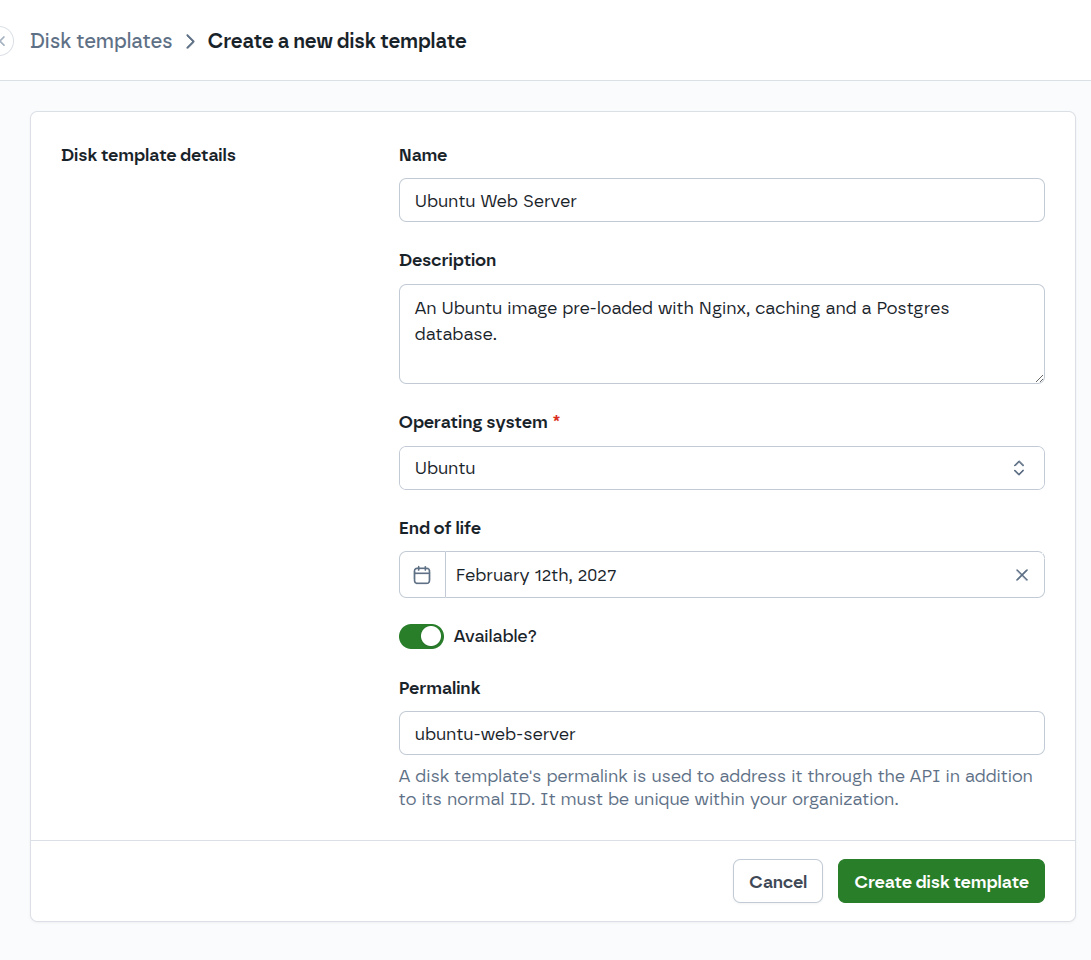
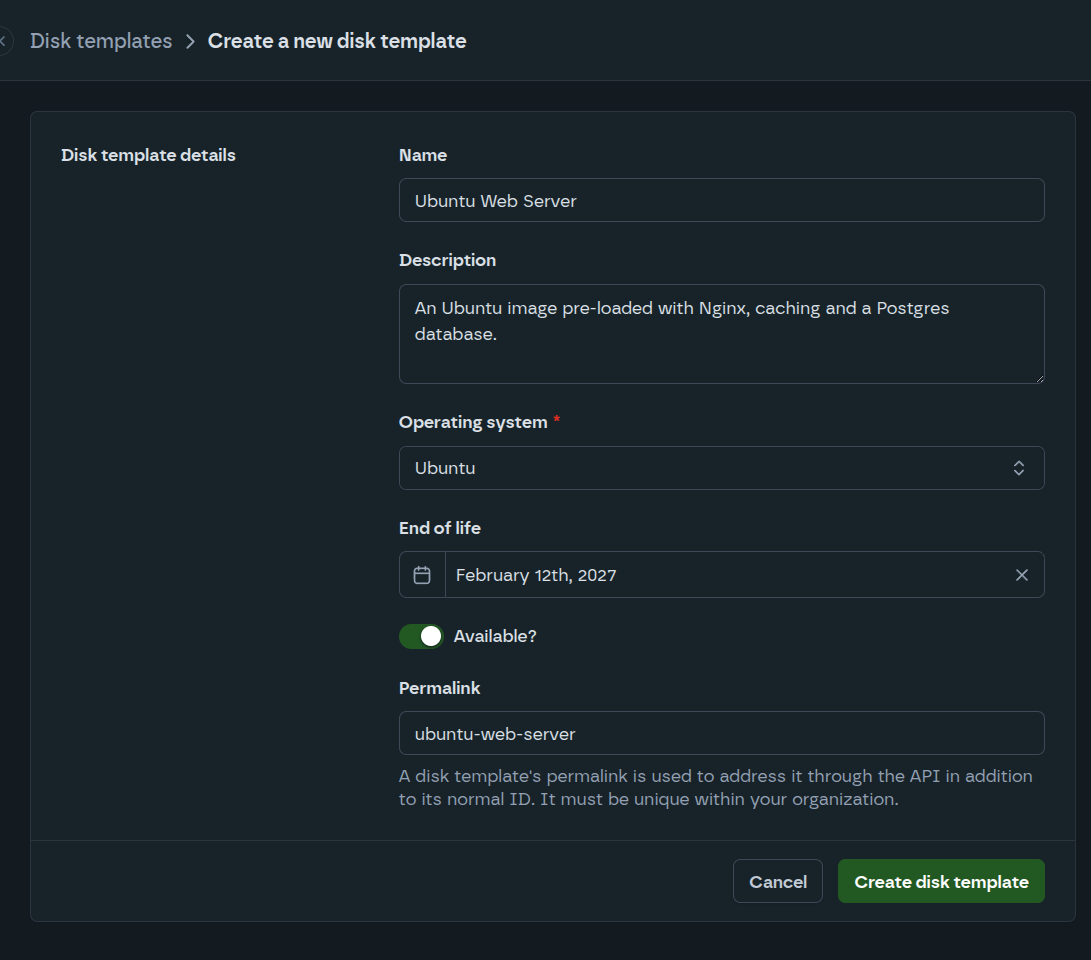
Configure template details
Name and description
-
Name: Enter a clear, descriptive name for your template (required).
- Good examples: "Ubuntu 22.04 Web Server", "Windows SQL Server 2022", "Development Environment Base"
- Use consistent naming conventions for easy organization
-
Description: Add detailed information about the template's purpose, installed software, and configuration details (optional).
Operating system
- Operating system: Select the appropriate OS from the dropdown menu if your template contains a recognizable operating system.
- This helps with:
- Automatic driver installation
- Boot optimization
- Console access configuration
- Network configuration
Template lifecycle settings
-
End of life: Set an optional expiration date for the template.
- Use this for templates that should be automatically retired
- Helps maintain template hygiene and security
-
Available?: Toggle switch to control template availability.
- When enabled, the template can be used to create new disks
- Disable to temporarily prevent usage without deleting the template
Permalink
- The system automatically generates a unique permalink for your template
- This is used for API access and internal references
- The permalink is based on your organization and template name
Update script (optional)
- Update script: Add shell commands that will run when creating disks from this template.
- Use this for:
- Post-deployment configuration
- Package updates
- Custom initialization scripts
- Environment-specific setup
Complete template creation
- Review all settings and ensure the configuration is correct.
- Click Create disk template to create the template.
- The template will be created and made available in your disk templates library.
- You can immediately start using the template to create new disks.
Template management
View template details
-
In the Storage > Disk Templates section, click on any template to view details.
-
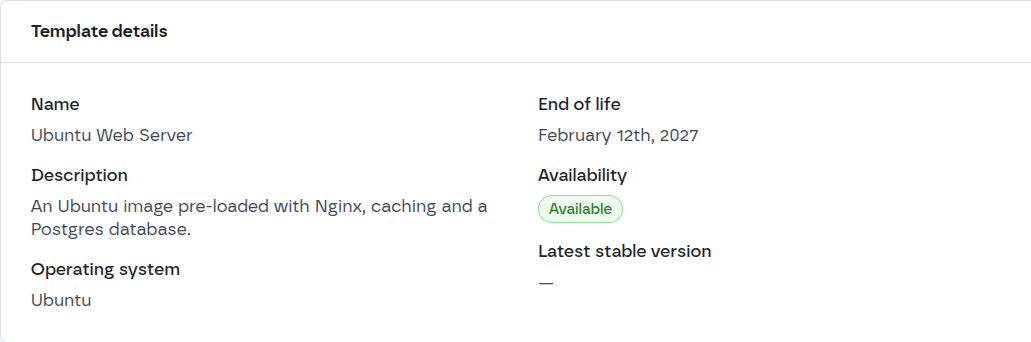
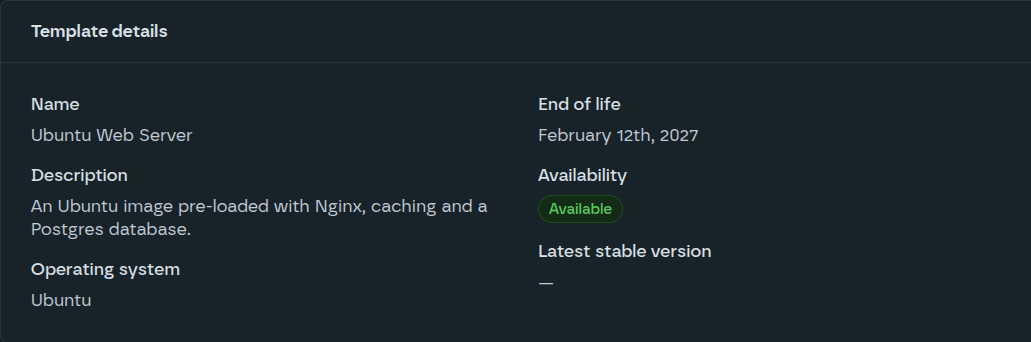
Review template details, creation date, end of life, versions, logs etc.