Quickstart
Disk templates let you create new virtual machines with system disks preloaded with the template's contents. Most virtual machines are built using templates, which are created from snapshots of your existing virtual machines.
Create a disk template
- In the Krystal Cloud Console, navigate to Storage > Disk Templates.
- Click Add new disk template.
- Enter a descriptive Name for your template.
- Add a Description (optional) explaining the template's purpose.
- Select an Operating system from the dropdown if applicable.
- Set an End of life date if the template should expire (optional).
- Toggle Available? to control whether the template can be used.
- Add an Update script if needed (optional).
- Click Create disk template.
Your disk template will be created, but you need to create a version before it can be used.
Create a template version
Templates must have at least one version before they can be used to create virtual machines.
- From your template's details page, click Create new version.
- Source type: Choose Disk snapshot to create from an existing disk snapshot.
- Disk snapshot: Select from available snapshots in your organization.
- Configure other version settings as needed.
- Click Create version.
Your template version will be created and made available for VM creation.
Use a disk template
Once your template has a version, you can use it when creating virtual machines:
- Navigate to Compute > Virtual Machines.
- Click Launch to create a new virtual machine.
- In the Operating system section, look for your template under the distribution matching the OS you set on the template.
- Select your template from the available options.
- Complete the VM creation process.
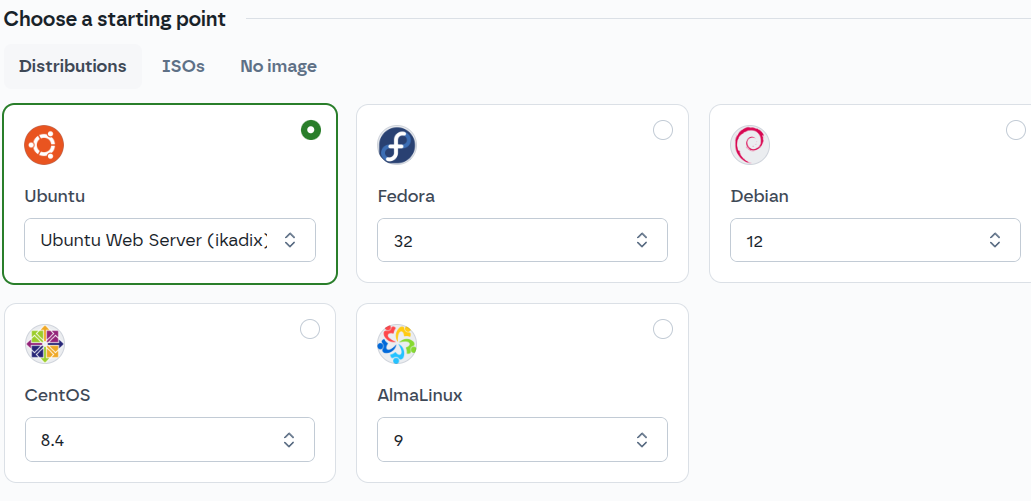
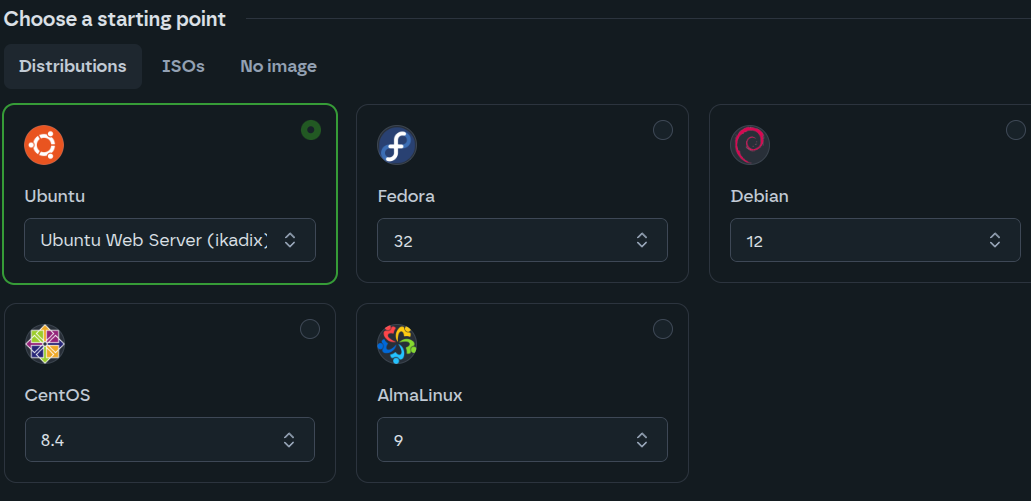
The virtual machine will be created using your disk template.
View template logs
- Navigate to Storage > Disks > Templates.
- Select your disk template to view its details.
- Click the Logs button to view execution logs.
Logs are only generated for versions that use an update script. Logs will be automatically deleted after 90 days.
Delete a disk template
- Navigate to Storage > Disk Templates.
- Select the template you want to delete.
- In the Actions section, click Move to trash.
- Confirm the deletion.
The template will be moved to trash and automatically deleted after 48 hours.